Quick Reference Guide
Use a GS18 as NTRIP Caster for drone controller
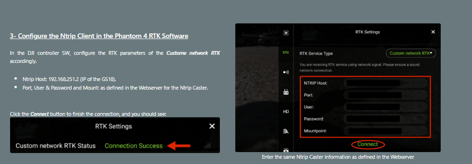
There is new functionality in v10 to configure an NTRIP Caster via WLAN using the Captivate interface. From Captivate v11, an additional security measure requires knowledge of the GS18 base receiver’s WLAN password.
Configure the base transmission
- Go to Base menu
- Settings – Connections - All other Connections
- EDIT Base RTK1 to use GS Internet 1,
- RTK Data Format RTCM v3 (MSM),
- apply antenna correction,
- OK
- CONTROL
- Port 2101
- Enter the mountpoint, ID, NTRIP credentials
- OK
If you also want to transmit RTK for a rover to use:
-
- EDIT Base RTK2 to use GS Radio
- Set Device Satel TR4+, or if necessary, create a new device called Satel TR4+BASE
- RTK Data Format Leica 4G,
- OK
- CONTROL
- Channel as required
- Protocol Satel 8FSK
- OK
- Start the base using Captivate as usual.
Determine your GS18 WLAN password (Captivate v11 and above only)
- With an established connection between the CS Controller and GS18, go to Windows Desktop (Fn + Esc on the CS20)
- Open the Webserver BT or Webserver WLAN, selected to suit your connection type
- From the GS18 webserver, Navigate to Instrument – Wireless Settings
- Note the GS18 WLAN Password (case sensitive)
If you also want to transmit RTK for a rover to use:
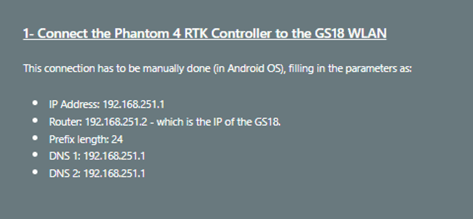
On your Android drone controller
-
Settings – Connections
-
Tap on WIFI
-
Tap/Hold on the GSserialnumber network
-
Enter the GS18 WLAN Password (Captivate v11 and above only)
-
Tap on View more
-
Tap IP Settings – Static
Then