
Captivate v11.00 Installation Instructions.
Before installing v11.00
Step 1.
Go to the connection bubble (@) shown in the status bar of the screen and enter the Bluetooth tile.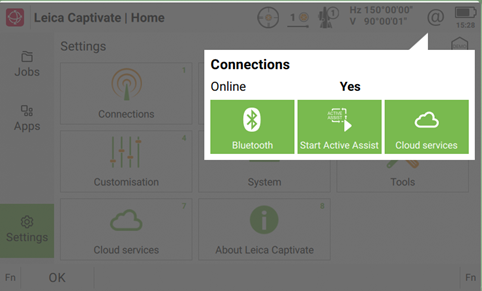
Make sure that the checkboxes for the existing connections are unticked. This needs to be done on both Total stations and controllers.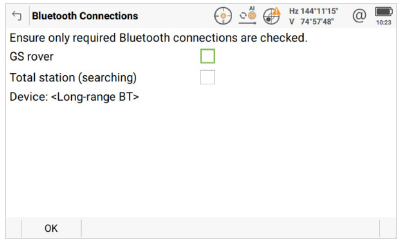
Step 2. Upgrade to version 11.00
Step 3. Re-pair the device as follows
Bluetooth - GNSS _ GS18 and GS05
To enable pairing, the sensor must be placed in pairing mode:
-
Press the ON/OFF button briefly (<1 second).
-
The connectivity LED flashes blue while in pairing mode.
-
Pairing mode remains active for 120 seconds.
During this period, the sensor can be paired with a CS20 Field Controller. Be aware that when pairing Windows tablets, a pop-up message will inform about a found device. Tap on this message and then confirm that the proposed device is the correct one. A final message will confirm then the pairing is successfully done
Note – The Pairing procedure is only required once. For subsequent restarts, if the GS05 or GS18 is powered up for more than 120s before the Controller, you may need to press the GS power button for <1s to re-activate BT on the GS. The controller will then connect to the GS antenna.
WLAN - GNSS - GS18
Pair via Bluetooth first
WLAN password is shared between GS18 and Leica Field Controller/Tablet during the first Bluetooth pairing connection. Once Bluetooth connection gets established, WLAN password gets shared and stored for future WLAN GS18 and Leica Field Controller/Tablet reconnections
WLAN Connections to Drone controllers now require the GS antenna WLAN Password. Refer to The Quick Guide ‘Pairing Drone Controllers’ for further information.
Deleting Bluetooth and WLAN pairings if required.
GS18 - Press and hold the ON/OFF button + Function button for 10 seconds.
GS05 - Press and hold the ON/OFF button for 7 seconds.
TS13 with Keyboard Unit (KU)
For TS13 instruments equipped with a basic 4-button Keypad, all Bluetooth configurations require the instrument to be placed into pairing mode before a new connection can be established:
- To enable pairing mode Press and hold the COM button for approximately 2 seconds.
-
While pairing mode is active, the COM LED blinks.
-
Pairing mode remains active for 2 minutes and can be terminated earlier by pressing the COM button again.
-
All Bluetooth pairings, including Bluetooth Radio Handle pairings when a Radio Handle is attached, are removed during a System Reset.
TS16 - TS20
For connections using a Bluetooth Radio Handle, run the CS Connection wizard on the Total Station first. Press Settings/Connections/CS connection wizard – step through wizard. Then run the TS Connection wizard on the CS Controller.
You will be asked to confirm the pairing at both ends with a passkey that is displayed.
Help & Support
If you have any issues pairing your GNSS or Total Station equipment, please call the team at Global Survey Support.