
Connecting Leica Captivate to SmartFix
This guide explains how to configure a Leica Captivate controller (such as the CS20 or CS35) to receive RTK corrections from the SmartFix network.
We cover two primary connection methods: Using the GNSS receiver's internal modem (standard) and using your mobile phone as a WLAN Hotspot.
Method 1: Connecting via Internal Modem (Standard)
This is the standard and recommended method, utilising the SIM card installed inside your GS sensor or CS controller.
-
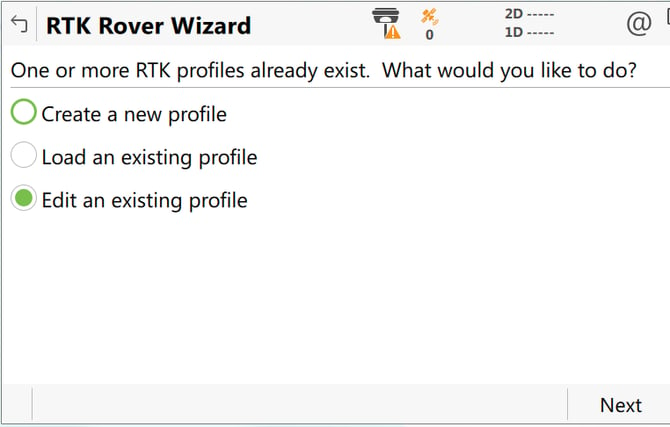
From the Captivate Home screen, navigate to Settings > Connections > RTK rover wizard
-
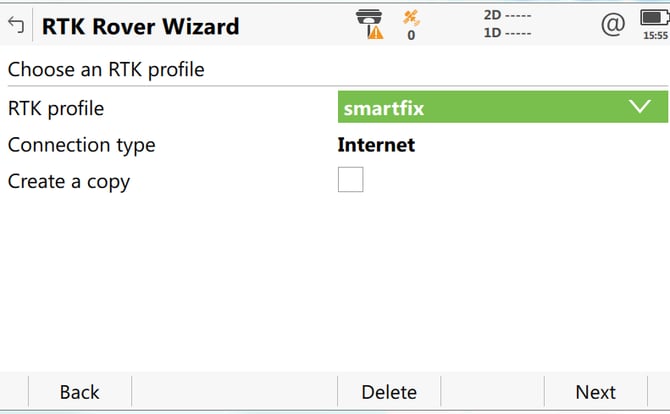
Select Edit an RTK Profile or create a new one and press Next. (Tip: You can select an existing profile and check 'Create a copy' to retain existing non-network settings)
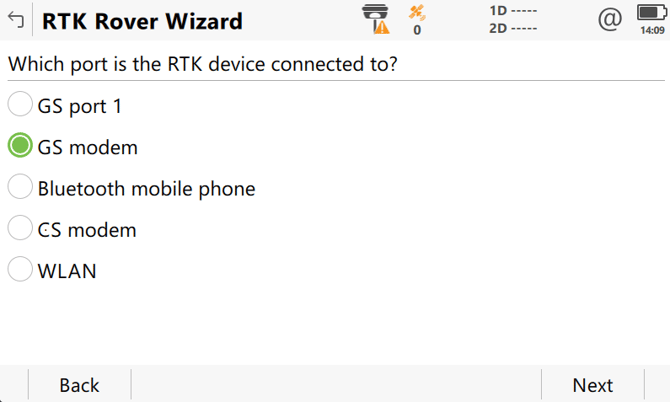
- Select GS modem as your connection port and press Next. (Note: This is where the sim card is, and if it's in the CS controller then set it to that.)
-
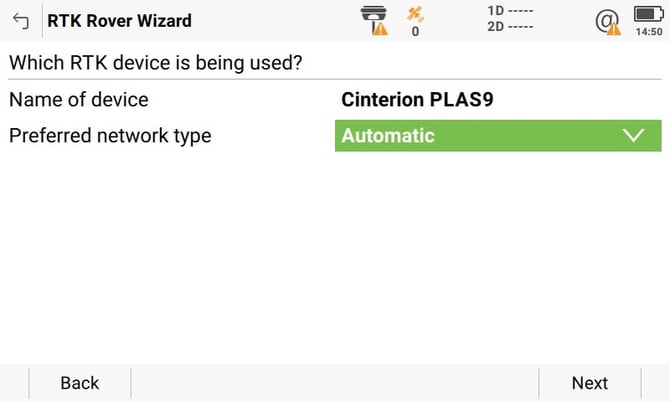
Check the Name of Device and Specify Preferred Network Type (generally left on Automatic).
Note: If the Name of Device is listed as Cinterion 3.5G, it relies on older cellular technology and will likely fail to connect to modern 4G/5G mobile internet networks.
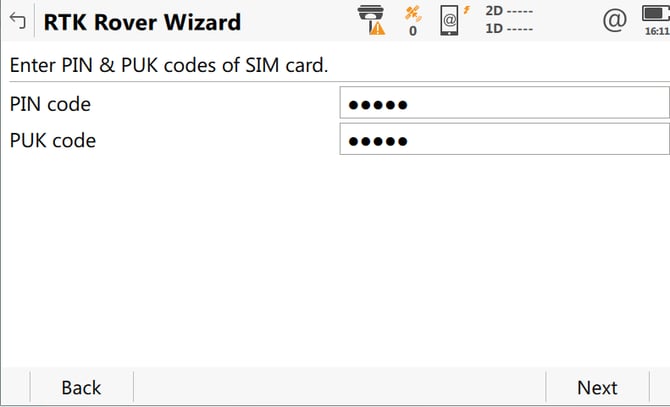
If your data SIM requires a PIN or PUK code, enter it now and press Next. Otherwise, leave it blank.
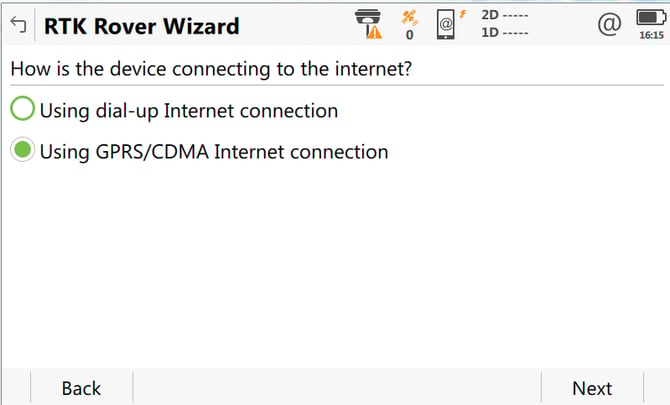
When asked how the device is connecting to the internet, select Using GPRS/CDMA Internet connection and press Next.
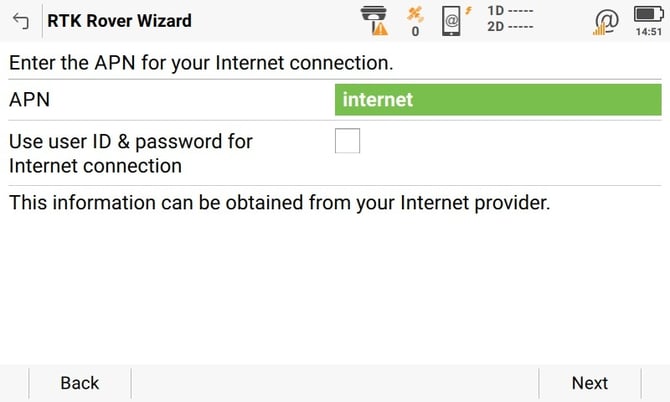
Enter the APN for your internet connection and press Next.
Note: The APN is determined by your cellular provider, not SmartFix. For example, Vodafone/2Degrees often use
internet, while Spark usesspark.net.nz.
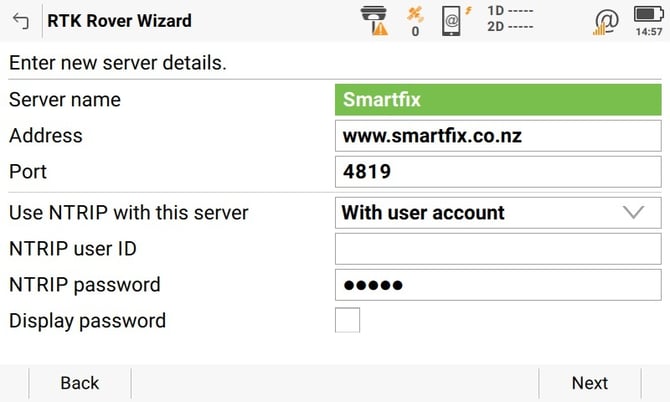
You will now configure the RTK Network Details. Select Create a new server. Set the following parameters:
- Server name:
www.smartfix.co.nz- IP address:
www.smartfix.co.nz(or60.234.42.123)- Port: Enter your desired regional or network port (e.g.,
4819). Please refer to the SmartFix Connection Parameters guide for your local port.- Check the box for Use NTRIP with this server.
- NTRIP user ID: Enter your SmartFix Username exactly.
- NTRIP password: Enter your SmartFix Password (Case Sensitive).
-
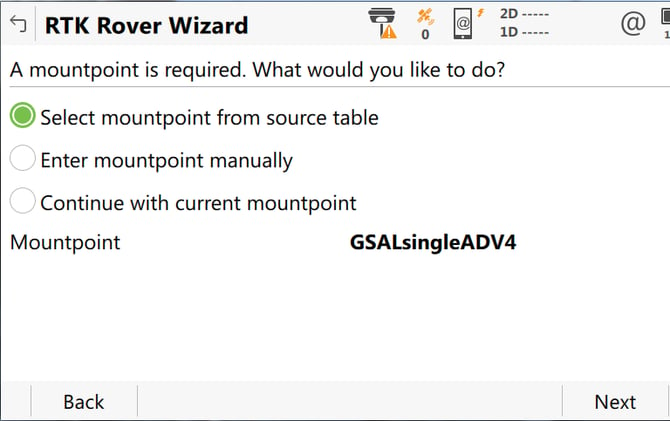
When asked about a mountpoint, select Select mountpoint from source table and press Next.
Diagnostic Tip: Selecting this option forces Captivate to download the live list of mountpoints from the internet. If the list fails to load, you know immediately that your controller does not have a working internet connection.
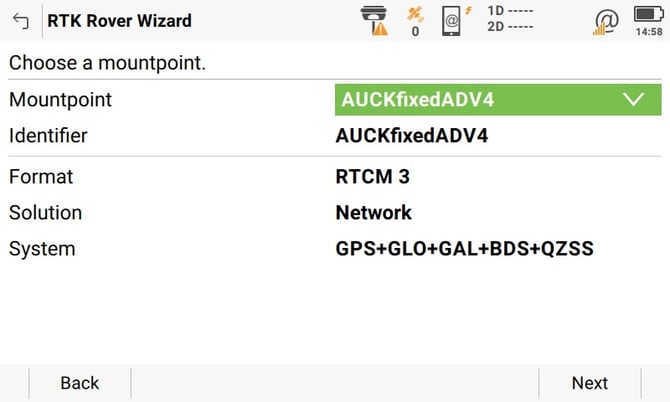
Select your desired Mountpoint from the list (e.g.,
AUCKfixedADV4) and press Next.
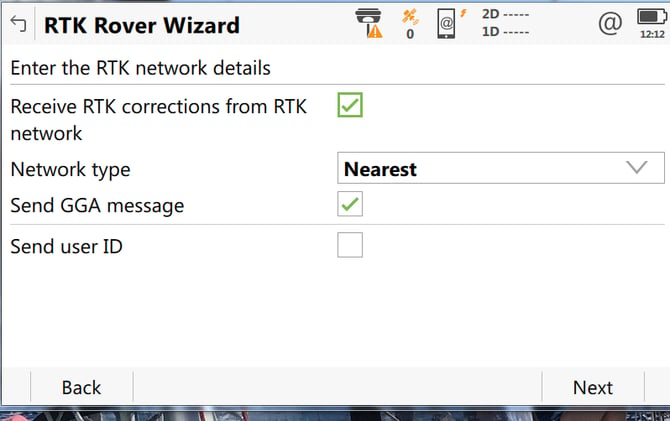
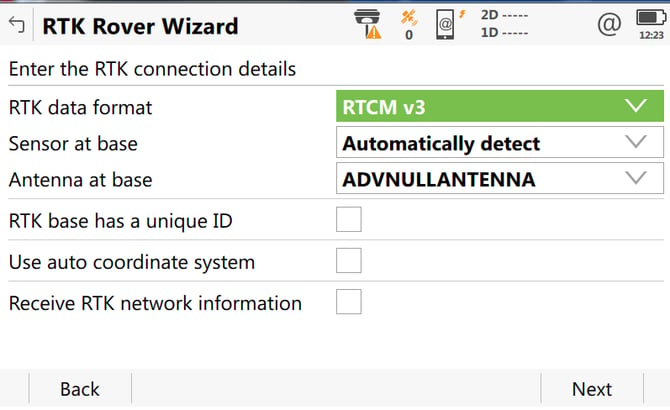
Ensure Receive RTK corrections from RTK network is checked, and finish the wizard.
Method 2: Connecting via Phone WLAN (Hotspot)
If your internal SIM fails or you are working in an area where your controller's provider has no coverage, you can use your smartphone's Wi-Fi hotspot to provide the internet connection to the CS20.
- Turn on the Wi-Fi Hotspot feature on your smartphone.
- From the Captivate Home screen, navigate to Settings > Connections > RTK rover wizard.
- Select Edit an existing profile and press Next.
- Select your existing SmartFix profile (from Method 1 above) and press Next.
- Check the box to Create a copy, name the new profile (e.g.,
SmartFix Hotspot), and press Next. - For the connection type, select WLAN and press Next.
- Select Search to scan for available Wi-Fi networks.
- Select your phone's hotspot from the list and press Next.
- Enter your phone's Wi-Fi hotspot Password and press Next.
- Step through the remainder of the wizard. Because you copied your existing SmartFix profile, all of the server IP, Port, Mountpoint, and NTRIP Credentials will automatically be retained.
📝 Note for GS18 I Users: If you have connected a Leica GS18 I to your CS20 controller using WLAN, you cannot simultaneously use WLAN for your phone's internet hotspot. You must first re-connect the sensor using Bluetooth (Settings > Connections > GS Connection wizard) before you can use the WLAN module to tether to your phone.