
This guide explains how to configure DJI Enterprise drones running the DJI Pilot 2 App (such as the Mavic 3 Enterprise or Matrice 300 RTK) to receive RTK corrections from the SmartFix network.
1. Hardware & Internet Pre-Requisites
Before attempting an RTK connection, you must ensure your hardware is physically ready and connected to the internet.
- RTK Module: If using a modular drone like the Mavic 3 Enterprise (M3E), ensure the RTK module is physically installed on top of the aircraft and the securing screws are tightened.
- Internet Connection: Your DJI smart controller must be connected to the internet via Wi-Fi (e.g., tethered to your phone's hotspot or an internal SIM if supported).
- Verification: Try to load the map view in the Pilot 2 planning screen. If the satellite imagery loads, you have an active internet connection.
2. Configuring Custom Network RTK
- Power on your drone and controller and open the DJI Pilot 2 App.
- Enter the camera/flight view.
- Tap the three dots (...) in the top right-hand corner of the screen to open the Aircraft Settings menu.
- Navigate to the RTK Settings tab (usually the satellite icon).
- Enable the RTK Positioning toggle switch.
- Recommendation: It is highly recommended to toggle Maintain Positioning Accuracy Mode to OFF for surveying missions to prevent the drone from falling back to standard GNSS positioning if RTK is temporarily lost.
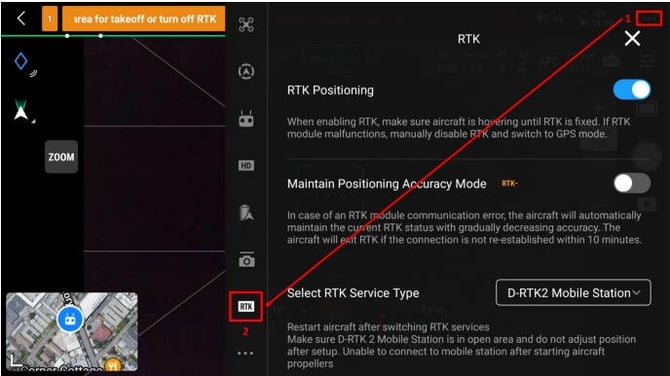
- Recommendation: It is highly recommended to toggle Maintain Positioning Accuracy Mode to OFF for surveying missions to prevent the drone from falling back to standard GNSS positioning if RTK is temporarily lost.
- Under the RTK Service Type section, select Custom Network RTK.
- You will now enter your SmartFix credentials and the appropriate network parameters. Refer to the Connection Parameters table for your regional port.
- NTRIP Host: Enter
www.smartfix.co.nz(or60.234.42.123). - Port: Enter
4815(The National Nearest Station port). This is optimal for drones as the server will automatically seamlessly connect you to the closest physical base station without needing to manually re-configure your controller when you travel between work regions. - User: Enter your SmartFix Username exactly.
- Password: Enter your SmartFix Password (Case Sensitive).
- MountPoint: Manually enter the mountpoint for your selected port (e.g.,
AUCKfixedADV4)
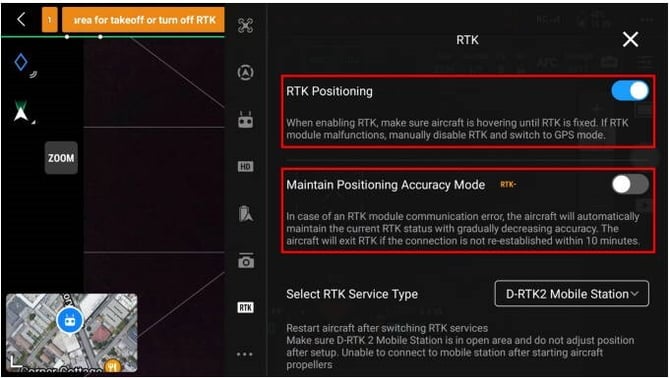
TIP: NearestSiteADV4 (Smart Roaming): Utilising port
4815and selectingNearestSiteADV4is the most reliable setup for continuous mobility. DJI users MUST select a mountpoint ending inADV4to ensure the drone receives multi-constellation RTCM 3.2 data (GPS, GLONASS, Galileo, BeiDou).
- NTRIP Host: Enter
- Tap Save to apply the settings.
3. Verifying the Connection Status
Once you tap Save, the drone will attempt to connect to the SmartFix server.
- Look at the RTK diagnostic screen or the status bar at the top of the flight view.
- You should see data flowing (Kbps) and the position status change from Single or Float to Fix.
- Once the status indicates Fix, your drone is operating with centimeter-level accuracy and is ready to fly your mapping mission.